
Request time off
Huglo Team App · Screenshot walkthrough
Opens Odoo in a new tab. Use your own Odoo login for real requests.
Step 1 of 7
Open Huglo Team App
In the Odoo app menu, choose Huglo Team App.

Step 2 of 7
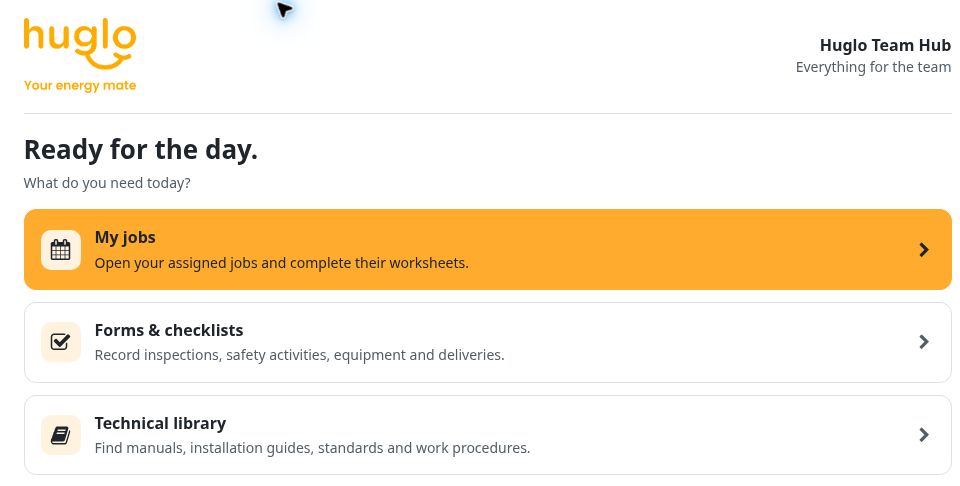
Choose Forms & checklists
In Huglo Team Hub, open Forms & checklists.
Step 3 of 7
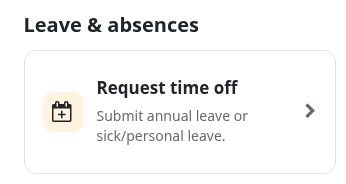
Find Request time off
Scroll to Leave & absences and choose Request time off. A new request form opens.
Step 4 of 7
Select a leave type
Choose the type that matches your request. If you are unsure, contact the office.
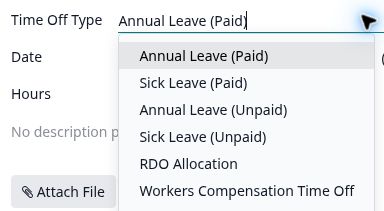
- Annual Leave (Paid)
- Sick Leave (Paid)
- Annual Leave (Unpaid)
- Sick Leave (Unpaid)
- RDO Allocation
- Workers Compensation Time Off
Step 5 of 7
Check your dates and hours
Enter the first and last dates you will be away. Check the Hours from/to and the calculated duration against your working schedule.
Swipe or scroll across to see the duration.
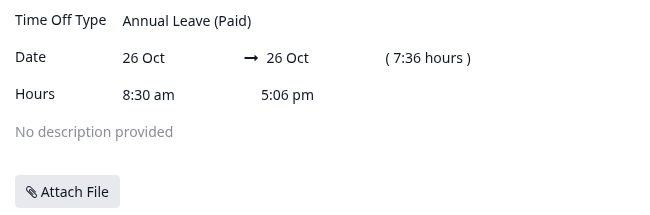
You can add a description or use Attach File if needed. Contact the office if the hours look incorrect.
Step 6 of 7
Save the request
In the app, use the small cloud icon beside the request title. Its label is Save manually.

Step 7 of 7
Sent for approval
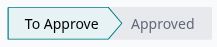
After saving, your request is sent for approval and shows To Approve. Once approved, the status changes to Approved.
Walkthrough only · These controls move through screenshots. No request is created.